RUNTIME FIELD IN ELASTICSEARCH & KIBANA
Introduction and How It Works
A Runtime Field is a virtual field defined in Kibana (Data View). Its value is not stored as a new physical field in Elasticsearch; instead, it is calculated dynamically whenever a query needs it.
1. What is a Runtime Field?
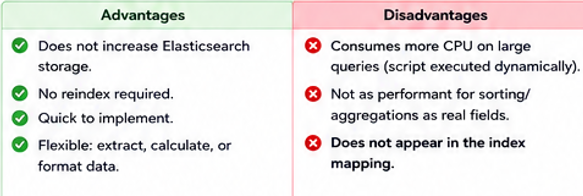
· It is not stored as a new physical field in the index, so it does not increase index storage in the same way as a normally indexed field.
· Its value is calculated with a script, commonly Painless, when a query runs.
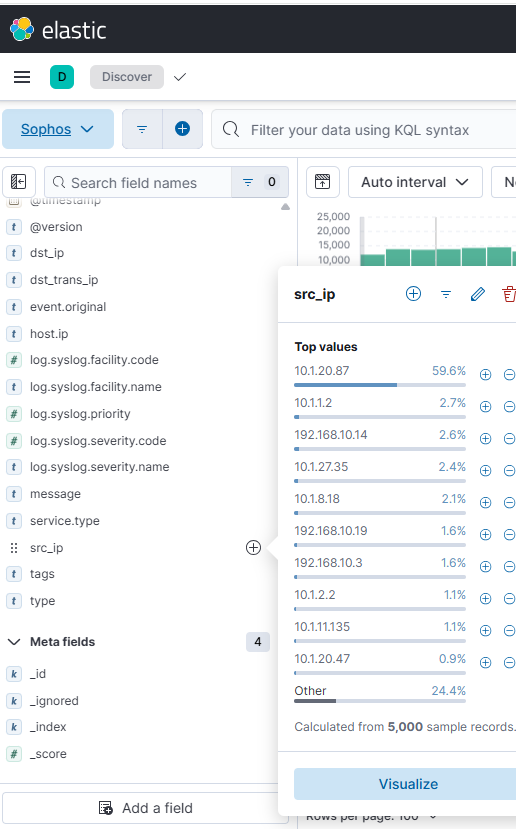
· It can extract, calculate, or transform data from existing fields, for example extracting src_ip from the message field.
· It can be created quickly without reindexing historical data.
· It is suitable for temporary analysis, log investigation, and testing parsing logic.
2. How Does a Runtime Field Work?
A Runtime Field does not modify the original log. Kibana stores the Runtime Field definition in the Data View. When a query uses the field, Elasticsearch executes the script and calculates the value at query time.
- Logs or device data are sent to Logstash or another ingest pipeline.
- Logstash sends the document to an Elasticsearch index.
- Kibana uses a Data View to access the indexed data.
- A Runtime Field, such as src_ip, is defined in the Data View.
- When the query needs src_ip, Elasticsearch runs the script and calculates the value.
- The calculated value is returned to Discover, Lens, or another visualization; it is not written back into _source.

3. Real Example – Sophos Firewall Log
A Sophos log may contain the complete log content in the message field:
<14>device_name="HCMHQFW005" ... fw_rule_id="21" fw_rule_name="Monitor to internet" ... src_ip="192.168.10.19" dst_ip="8.8.8.8" protocol="UDP" dst_port=53 ...
If src_ip has not been parsed into a separate field, a Runtime Field can read message and extract 192.168.10.19. The field can then be used to filter the Monitor to internet rule and count the Source IPs that passed through it.

| |
| |
4. Pros and Cons
| |
| |
5. How to Create a Runtime Field in Kibana
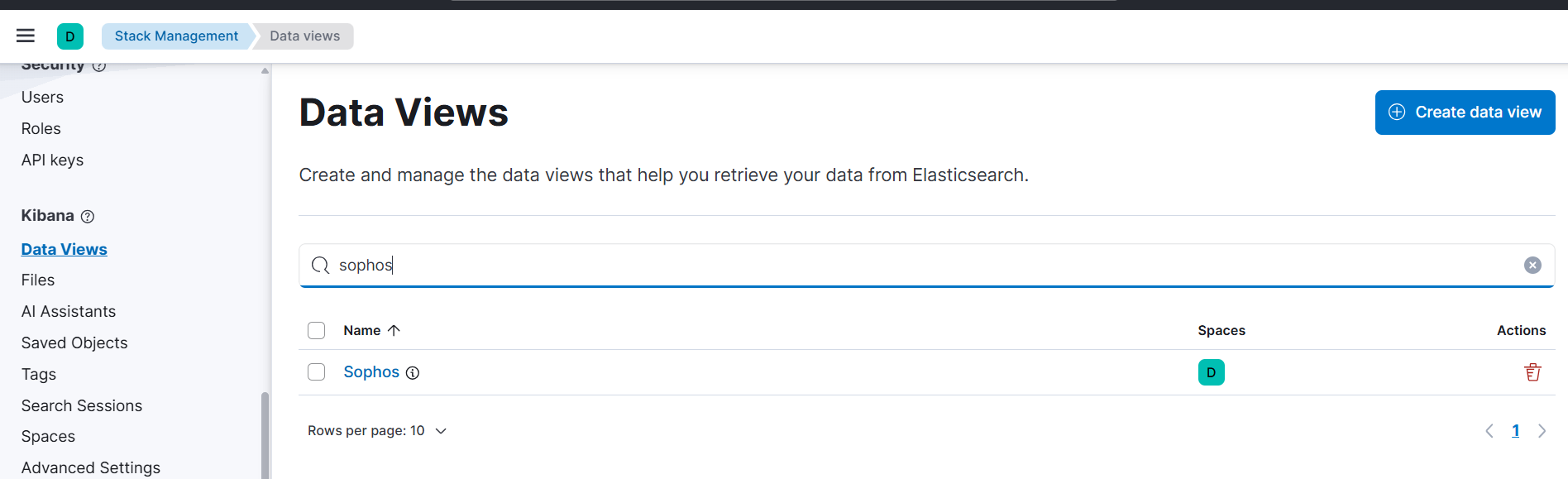
- Go to Stack Management → Data Views.
- Select the Data View to use, for example Sophos with the index pattern sophos*.
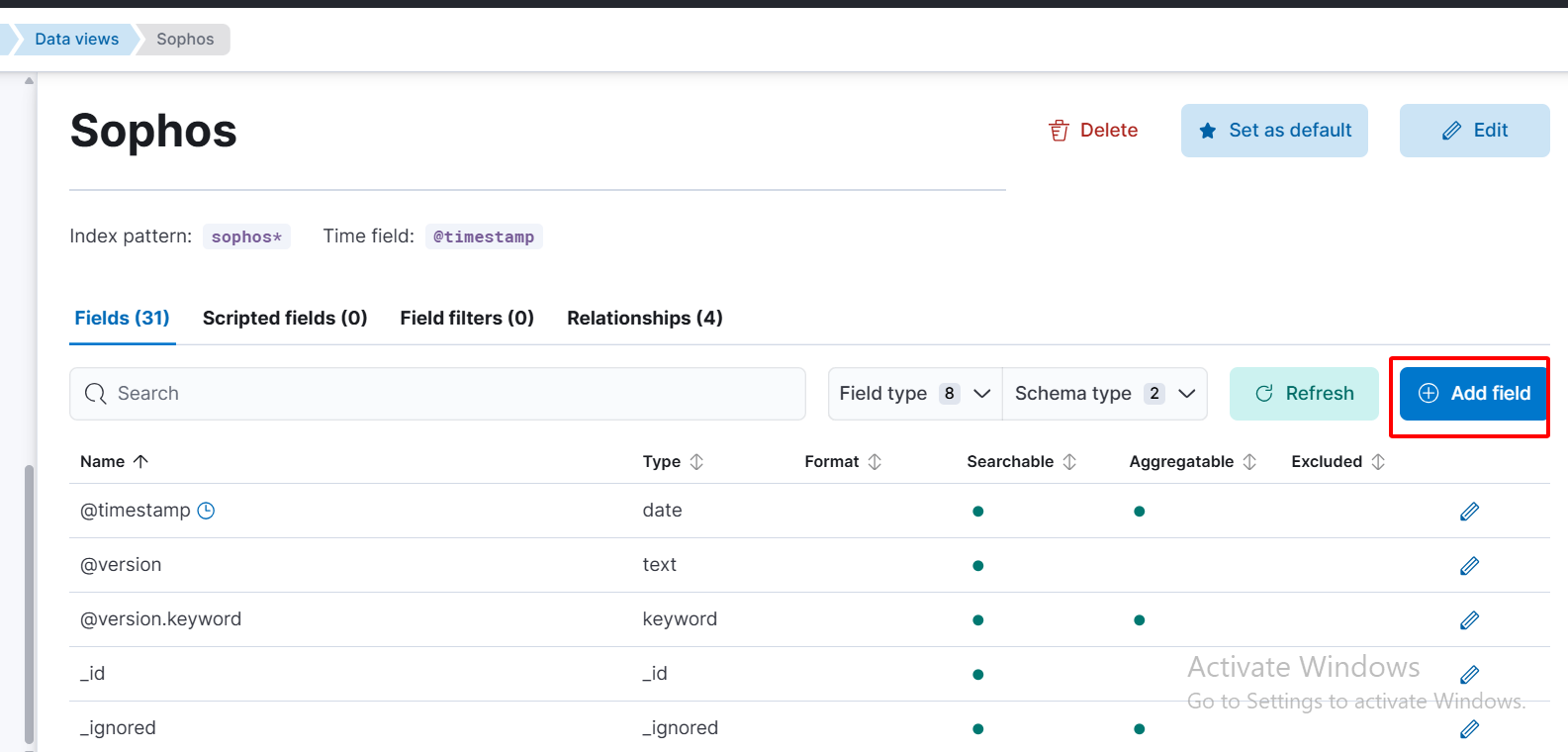
- Click Add field → Create field.
- Set the field name, for example src_ip; select Keyword as the Type.
- Enable Set value and enter the Painless Script to extract the value.
def msg = params._source['message'];
if (msg != null) {
String key = 'src_ip="';
int start = msg.indexOf(key);
if (start >= 0) {
start += key.length();
int end = msg.indexOf('"', start);
if (end > start) {
emit(msg.substring(start, end));
}
}
}
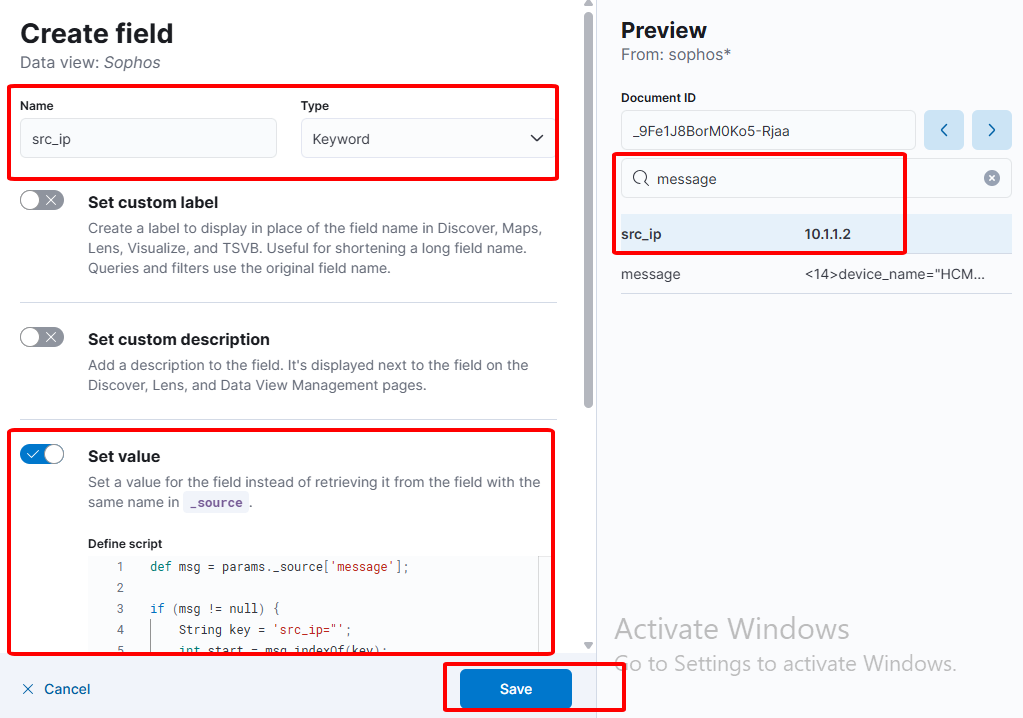
- Check the Preview section to make sure the field returns the correct data.
- Click Save to save the Runtime Field in the Data View.
At this point, the Runtime Field should appear in Kibana Discover.